
Most people treat their inbox like a storage unit.
It’s messy. It’s stressful. And it’s full of things you’re terrified to throw away but will likely never need again.
The average professional spends 28% of their work week reading and answering emails.
That is 11 hours wasted. Every single week.
I don’t know about you, but I’d rather spend that time building my business or being with my family.
Enter Gemini in Gmail.
It isn't just a "cool AI feature." It is the fastest way to reclaim your time from the inbox black hole.
Here is the exact system I use to cut email time in half using Gemini.
1. Search every active subscription using Gemini
You are probably bleeding money right now.
We all sign up for free trials, forget to cancel, and end up paying for tools we haven't touched in six months. Finding these in a sea of newsletters is impossible.
Gemini acts as a financial auditor for your inbox.
Open the Gemini side panel and ask a direct question across your entire history.
The Prompt:
- "Show me all my active subscriptions."
- "Find all receipts from 'SaaS Tools' in the last year."
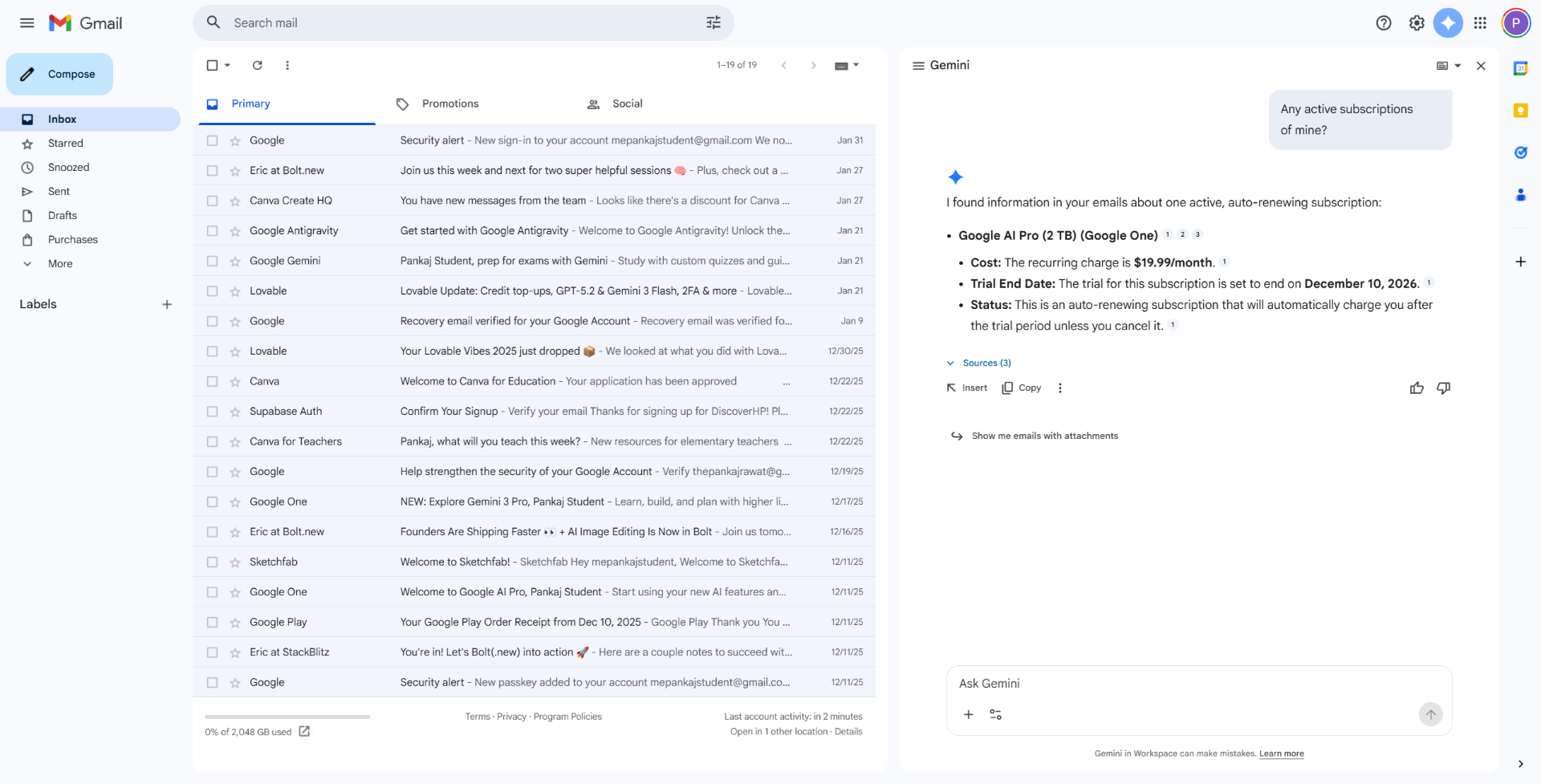
It pulls up the renewal notices. It finds the receipts. You spot the $49/month charge you forgot about.
The Result: You cancel the waste. That is money back in your pocket in 30 seconds.
2. Summarize long threads with 2 clicks
We’ve all been there.
You get CC’d on a thread that has been going on for 4 days. There are 17 replies. You have no idea what is happening, but you need to know if you have an action item.
The Old Way:
- Open the first email.
- Read chronologically.
- Try to piece together the timeline.
- Waste 15 minutes.
The Gemini Way:
- Open the thread.
- Click the Gemini star icon (top right).
- Click "Summarize this email."
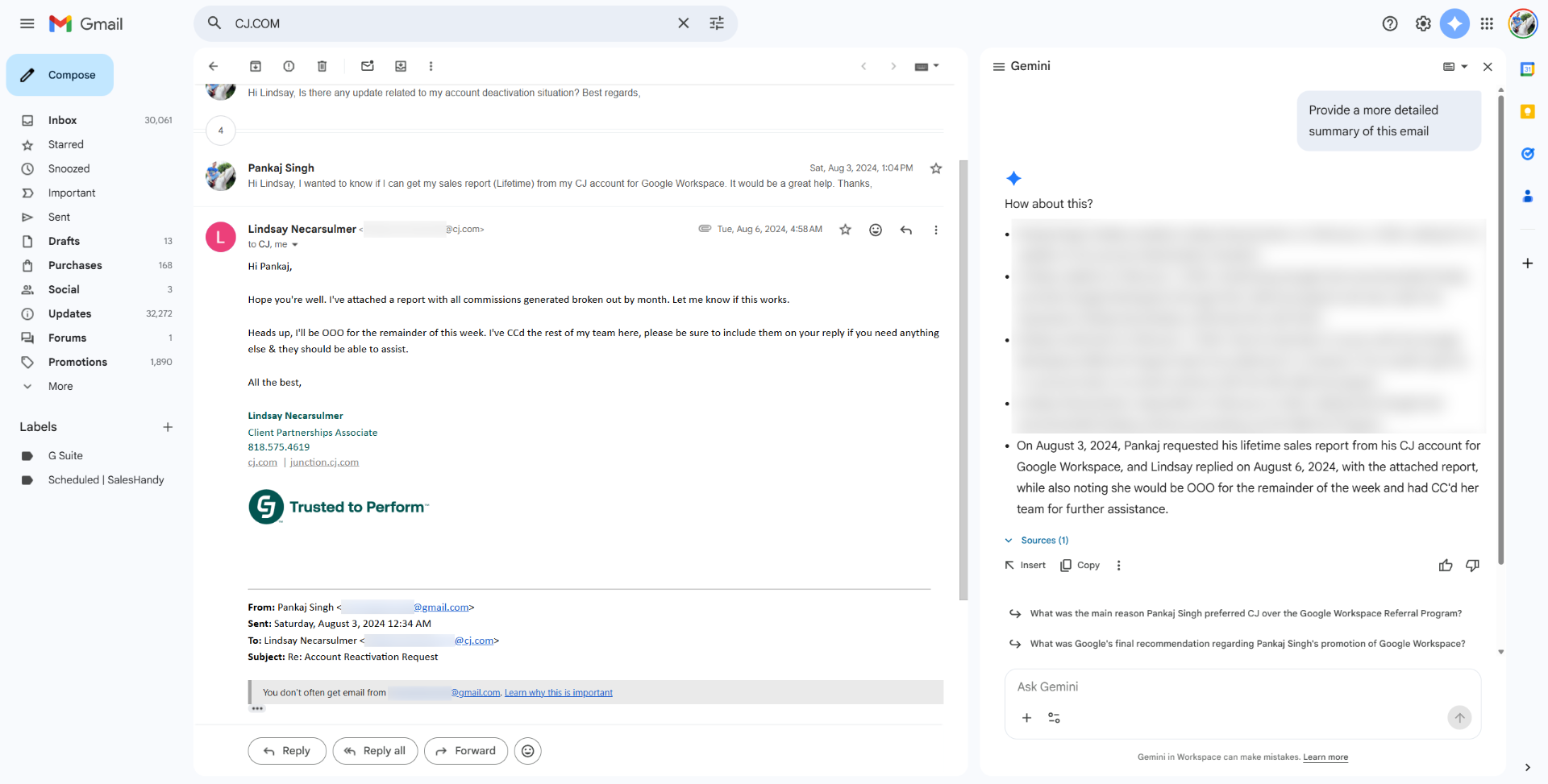
In 3 seconds, you get a bulleted list of the entire conversation. You may get more suggestions based on your context.
The Result: You know exactly what happened and who is responsible, without reading the novel.
3. Help me write feature
Responding to difficult emails drains mental energy.
Maybe it’s a negotiation. Maybe it’s an angry customer. Maybe you just need to say "no" politely. Staring at a blinking cursor is a productivity killer.
Use the "Help me write" feature to get to 80% done immediately.
How to do it:
- Open a compose window.
- Select the pencil icon with the star.
- Type a rough prompt.
Example Prompts:
- "Ask for a refund for order #1234 because it arrived damaged. Tone: Professional but firm."
- "Draft a polite decline to this invite. I am traveling that week."
Gemini spits out a full draft. You tweak the nuance. You hit send.
Time saved: 5-10 minutes per difficult email.
4. Prepare for Meetings
Prepare for Meetings
You have a call with a client in 5 minutes. You can't remember where you left off.
Most people panic-search the client's name and frantically skim 10 different threads.
The Gemini Fix: Get a cheat sheet before you hop on Zoom.
- The Prompt: "Summarize the last 3 emails exchanged with [Client Name] and highlight any open questions."
The Result: You enter the meeting looking prepared and organized, without the stress.
5. Prioritize Important Emails
Returning from time off is painful. You have 400 unread emails.
The mistake is trying to read them all. You don't need to read everything; you just need to know what your boss or key investors said.
The Gemini Fix: Filter the noise and focus on the VIPs.
- The Prompt: "Summarize all unread emails from [Boss's Name] sent in the last week."
The Result: You catch up on the critical 1% of information in 2 minutes. The rest can wait.
6. Organize Travel Details
You have a work trip coming up.
Your flight confirmation is in one email. Your hotel is in another. Your dinner reservation is somewhere else. Standing at the check-in counter searching for "confirmation number" is a waste of energy.
The Gemini Fix: Turn scattered emails into a master plan.
- The Prompt: "Create a table of my upcoming trip to [City] including flight numbers, hotel address, and times."
The Result: A single, clean view of your entire schedule.
7. Extract To-Do Lists
You are on a long email thread about a product launch. Everyone is chiming in.
Buried in paragraph 4 of an email from Tuesday, someone assigned you a task. If you miss it, you look incompetent.
The Gemini Fix: Don't rely on your memory. Rely on the database.
- The Prompt: "List all action items assigned to me in this thread."
The Result: A clear to-do list. Zero dropped balls.
8. Summarize Newsletters
We all subscribe to smart newsletters. We rarely have time to read them.
They pile up, creating digital clutter and guilt.
The Gemini Fix: Extract the value without reading the fluff.
- The Prompt: "Summarize the 3 key takeaways from the latest [Newsletter Name] email."
The Result: You get the learning without the time commitment.
9. Turn your inbox into a database (Q&A)
Finding information in Gmail used to be a nightmare of keyword searching.
- "Was it 'invoice' or 'bill'?"
- "Did John send that in May or June?"
Gemini allows you to "chat" with your inbox.
Open the side panel and ask natural questions like you’re talking to an executive assistant.
Try asking this:
- "What is the status of the Project Alpha launch based on my emails this week?"
- "When does my flight to Chicago leave?"
- "List all action items sent by Sarah in the last 3 days."
It hunts down the info and serves it to you on a silver platter. No searching required.
The Summary
You don't need to be an "AI Expert" to get value here. You just need to value your time.
Stop letting email run your life.
Next Step: Open your Gmail right now. Find the longest, most annoying thread in your inbox. Click "Summarize."
Feel the relief? That’s the power of Gemini.